Key takeaways
- Size and resolution: 34-inch ultrawide, 3440 x 1440 (WQHD), roughly 110 PPI
- Panel technology: IPS
- Refresh rate: 180 Hz
- Adaptive sync: Adaptive-Sync and G-SYNC compatible
- Inputs: HDMI and DisplayPort
- Multitasking features: PIP/PBP (picture-in-picture and picture-by-picture)
- Price tier: mid-range
For most video editors, the best ultrawide monitor is the INNOCN 34″ Ultrawide WQHD 3440 x 1440 180 Hz IPS. An IPS panel at that resolution gives you the two things an editing timeline actually needs: color that stays consistent when you glance at the far edges of a very wide screen, and roughly 2,000 horizontal pixels left over for the timeline after a project panel and a program monitor are placed. It suits editors working in Premiere Pro, DaVinci Resolve, Final Cut Pro or CapCut who deliver Rec.709 SDR to YouTube, client review links and social cuts, and who would rather run one wide display than two 16:9 panels with a bezel down the middle. If the budget is tighter, the Sceptre 34-inch Curved Ultrawide WQHD covers the same 3440 x 1440 canvas with 99% sRGB coverage at a budget-tier price, and it is the smartest first ultrawide in this list. If you want the largest canvas plus single-cable laptop docking, the INNOCN 40″ 5K 115 Hz USB-C is the premium pick. Skip 2560 x 1080 ultrawides for editing: 3440 x 1440 is the practical floor, because 1080 vertical pixels leaves you scrolling your timeline instead of reading it.
Top 3 Picks
Best overall: INNOCN 34″ Ultrawide WQHD 180 Hz IPS
IPS is the panel technology that keeps a wide screen honest, and this is the only model here whose listing states it outright. You get 3440 x 1440, 180 Hz for smooth scrubbing, Adaptive-Sync and G-SYNC compatibility, HDMI and DisplayPort, plus PIP/PBP for running a laptop and a desktop side by side without a KVM. It is the balanced choice for SDR delivery work at a mid-range price tier.
Best budget: Sceptre 34-inch Curved Ultrawide WQHD
The Sceptre delivers the same 3440 x 1440 editing canvas with 99% sRGB coverage — the color space that matters most for web and broadcast SDR delivery — plus two DisplayPort inputs and an R1500 curve. Two DisplayPort inputs at a budget tier is genuinely useful: one for the edit machine, one for a laptop, no switcher required. If you are moving up from a 24-inch 1080p screen, this is the cheapest route that does not compromise the timeline.
Best premium: INNOCN 40″ 5K 115 Hz Ultrawide with USB-C
This is the one to buy if your desk is deep, your GPU is modern and your laptop is your edit machine. A 40-inch 5K ultrawide pushes pixel density up to roughly 139 PPI — a visible step beyond the ~110 PPI of every 34-inch 3440 x 1440 panel here — and USB-C input for laptop, Mac and mini PC means one cable for video, data and charging. HDR400 is entry-level HDR, not a grading reference, so treat it as a brightness headroom bonus rather than a Dolby Vision pipeline.
Quick Comparison
| Product | Best for | Key specs (as listed) | Price tier |
|---|---|---|---|
| INNOCN 34″ Ultrawide WQHD 180 Hz IPS | Color-consistent SDR editing on a mid-range budget | 34″, 3440 x 1440, 180 Hz, IPS, Adaptive-Sync / G-SYNC compatible, HDMI + DisplayPort, PIP/PBP | Mid-range |
| Sceptre 34-inch Curved Ultrawide WQHD | First ultrawide; tightest budget; two-computer setups | 34″, 3440 x 1440, R1500 curve, up to 180 Hz / 165 Hz, 2 x DisplayPort, 99% sRGB | Budget |
| ZZA 34″ White Curved WQHD | White-themed builds, streaming rigs, secondary edit stations | 34″, 3440 x 1440, 165 Hz / 180 Hz, curved, FreeSync | Budget |
| INNOCN 40″ 5K 115 Hz Ultrawide USB-C | Premium single-cable workstation editing; 4K timelines | 40″, 5K ultrawide, 115 Hz, HDR400, USB-C for laptop / Mac / mini PC | Premium |
| SANSUI 34-Inch Curved UWQHD 200 Hz | Editors who also game; highest refresh in this list | 34″, 3440 x 1440, up to 200 Hz, curved ultrawide | Mid-range |
| Philips 34E1C5600HE | Hybrid editors who record voiceovers and take client calls | 34″, UltraWide QHD 21:9, built-in Windows Hello webcam, noise-canceling mic | Premium |
How We Chose
Every monitor here was assessed on published specifications and category norms rather than on a test bench: panel technology, native resolution, pixel density, refresh rate, stated color coverage, input count, and the physical realities of curvature and stand depth. We weighted the criteria by what actually changes an edit session — resolution and panel type first, because they determine how much timeline you can see and how stable the color is across a 34-inch span; color coverage and calibration options second, because 99% sRGB with a proper ICC profile beats a vague “wide gamut” claim with no way to tame it; connectivity third, because DisplayPort count and USB-C docking decide how many machines you can attach without a switcher. Curvature and desk depth were treated as fit constraints, not preferences, since a 40-inch 5K panel on a 60 cm desk is a neck problem. We also considered upgrade path: whether the panel can survive a move from 1080p delivery to 4K, and whether the stand or VESA mount lets you reclaim depth later. No product was selected on brand reputation alone, and none was excluded for being unfamiliar — the budget tiers earn their place on spec class and warranty terms.
1. INNOCN 34-Inch Ultrawide WQHD 180 Hz IPS – Best for Color-Consistent SDR Editing
As an Amazon Associate we earn from qualifying purchases at no extra cost to you.

The INNOCN 34-inch is the pick for the editor who runs one display, works to a mid-range budget, and delivers Rec.709 SDR — YouTube uploads, Vimeo, client review links, social cutdowns. It is the only monitor in this roundup whose listing explicitly names IPS, and on a 34-inch ultrawide that single word does more work than any other spec on the sheet. A VA panel’s color shifts as you move off-axis, and on a screen roughly 80 cm wide the far ends of your timeline sit well off-axis even when you sit dead center. An IPS panel holds its color and gamma across that whole span, which means the scopes you are reading and the thumbnail you are judging in the corner of the screen agree with the footage in front of you.
Key specs as listed
- Size and resolution: 34-inch ultrawide, 3440 x 1440 (WQHD), roughly 110 PPI
- Panel technology: IPS
- Refresh rate: 180 Hz
- Adaptive sync: Adaptive-Sync and G-SYNC compatible
- Inputs: HDMI and DisplayPort
- Multitasking features: PIP/PBP (picture-in-picture and picture-by-picture)
- Price tier: mid-range
The 180 Hz refresh rate is not a gaming-only feature. In any NLE, dragging clips, scrubbing the playhead and moving the timeline zoom slider all redraw the interface dozens of times per second, and a 180 Hz panel makes those interactions feel like dragging a physical object rather than waiting for the software to catch up. It will not make your exports faster and it will not improve your color judgment, but on long editing days the difference between 60 Hz and 180 Hz in interface responsiveness is noticeable, especially when you are doing hundreds of micro-adjustments on a cut.
PIP/PBP is the sleeper feature for editors. If you have a desktop for rendering and a laptop for client calls, or a second machine feeding reference footage, picture-by-picture lets both inputs share the panel without a KVM switch, and picture-in-picture lets you park a small reference window over a corner. At this price tier that is a real convenience, not a checkbox.
Where it falls short
IPS contrast is the trade-off. Typical IPS panels sit around 1000:1 static contrast, which means blacks in a dark grading room look like very dark gray rather than black. If you grade in a bright, color-managed room at 120-160 cd/m², this is a non-issue. If you work in a darkened suite and care about shadow detail, a VA panel’s deeper blacks will look more satisfying — even though the VA panel is the less accurate choice for color work. There is no USB-C input listed, so laptop editors will need a dock or a USB-C-to-DisplayPort adapter, and that dock has to be able to drive 3440 x 1440 at a high refresh rate. The listing also does not state a hardware calibration path, which is normal at this tier: you will be calibrating through software and an ICC profile, and that is fine for SDR delivery.
Pros
- IPS panel — the most color-stable option in this roundup across a wide screen
- 3440 x 1440 gives a genuinely usable timeline plus a 960-pixel-wide program monitor
- 180 Hz makes scrubbing and timeline manipulation feel immediate
- PIP/PBP handles two computers without extra hardware
- G-SYNC compatibility and Adaptive-Sync keep GPU-accelerated previews tear-free
- Mid-range tier price for a spec sheet that reads like a premium panel of three years ago
Cons
- IPS contrast means gray-ish blacks in a dark room
- No USB-C docking listed, so laptop workflows need an adapter or dock
- No stated hardware LUT or internal calibration — software profiling only
- Flat panel takes more desk depth than a curved equivalent of the same width
- HDR performance is not a headline spec; assume SDR-first
How it compares with the nearest alternative
The SANSUI 34-inch curved 200 Hz is the closest competitor: same resolution, higher refresh rate, and a curve that pulls the edges of the screen closer to your eyes. If you split your time between editing and gaming, the SANSUI’s extra 20 Hz and curved geometry are appealing. But the SANSUI’s listing does not name its panel technology, and at that price class a curved 34-inch is typically VA — which means the INNOCN wins on the criterion that actually affects color decisions. Choose the INNOCN if accuracy comes first; choose the SANSUI if the display is a hybrid work-and-play screen. Against the budget Sceptre, the INNOCN costs more but buys IPS stability and PIP/PBP, and those two things are worth the step up for anyone delivering client work.
2. Sceptre 34-Inch Curved Ultrawide WQHD – Best for a First Editing Ultrawide

The Sceptre 34-inch curved is the answer for the editor who has decided that 3440 x 1440 is the right canvas but cannot justify a mid-range spend to get there. It is the budget pick of this roundup and, for a lot of people, the correct first ultrawide: the same horizontal pixel count as every other 34-inch here, an R1500 curve that keeps the far ends of a long timeline closer to your eyes, and 99% sRGB coverage, which is the single most useful color specification for anyone delivering to the web, to YouTube, or to broadcast SDR. If your delivery spec is Rec.709, sRGB coverage near 100% is what you actually need — AdobeRGB and DCI-P3 numbers are marketing for most editors until they start delivering HDR or print.
Key specs as listed
- Size and resolution: 34-inch ultrawide, 3440 x 1440
- Curvature: R1500
- Refresh rate: up to 180 Hz / 165 Hz
- Inputs: DisplayPort x2
- Color coverage: 99% sRGB
- Price tier: budget
Two DisplayPort inputs is the standout detail. At the budget tier, most monitors give you one DisplayPort and a couple of HDMI ports, and HDMI 2.0 cannot carry 3440 x 1440 at high refresh rates — it tops out around 100 Hz at that resolution with 8-bit color before blanking overhead eats the rest. Two DisplayPort connections means you can run your edit desktop on one input at full refresh and a laptop or a second machine on the other, both at the panel’s native capability, and switch with the OSD button rather than crawling under the desk. For a two-computer workflow, that is worth more than an extra 20 Hz of refresh.
The R1500 curve does real work at 34 inches. A flat 34-inch ultrawide is roughly 80 cm wide, and if you sit 70 cm from the center, the outer edges of the panel are about 80 cm away and viewed at a fairly steep angle. Curving the panel at a 1500 mm radius pulls those edges forward and inward, which reduces both the viewing angle at the extremes and the amount of head-turning you do to read the end of a timeline. Editors who spend hours dragging clips along a horizontal track tend to notice this after a week, not in the first five minutes.
Where it falls short
The listing does not state panel technology, and a curved 3440 x 1440 panel at a budget price is almost always VA. VA brings deeper blacks and higher contrast than IPS — which looks great in a dark room — but it also brings color and gamma shift off-axis. On a 34-inch curved screen the curve partly compensates by keeping the edges closer to perpendicular, but if you routinely judge skin tones in a window parked at the far right of the screen, you will want to move that window toward the center. Budget-tier stands also tend to be less rigid than premium ones; if you type hard, the panel may wobble slightly, and a VESA arm is a worthwhile addition. There is no USB-C, no stated HDR certification worth quoting, and no hardware calibration. None of those matter for SDR delivery, but be honest with yourself about whether they will matter in two years.
Pros
- 3440 x 1440 canvas at the lowest price tier in this list
- 99% sRGB coverage — the spec that matches Rec.709 SDR delivery
- Two DisplayPort inputs support two computers without a switch
- R1500 curve reduces edge viewing angle on a wide panel
- High refresh rate keeps timeline interaction smooth
- The natural upgrade for anyone coming from a 24-inch or 27-inch 1080p screen
Cons
- Panel technology not stated; expect VA-class off-axis color shift
- Budget-tier stand rigidity and cable management
- No USB-C docking or laptop charging
- No stated calibration features or internal LUT
- HDR support, if present, is nominal rather than useful for grading
How it compares with the nearest alternative
Against the ZZA 34-inch white curved, the Sceptre wins on documented specs: 99% sRGB and two DisplayPort inputs are stated facts, while the ZZA listing emphasizes refresh rate, FreeSync and a white chassis. If you are buying a display for color work, stated coverage beats styling. Against the mid-range INNOCN 34-inch IPS, the Sceptre saves money and keeps the same resolution and curve, but gives up IPS color stability and PIP/PBP. The honest framing: if this is your first ultrawide and your clients review on phones and laptops, the Sceptre is enough, and the money you save is better spent on a calibrator. If you are already delivering color-critical work, step up to the INNOCN.
3. ZZA 34-Inch White Curved WQHD – Best for a White-Themed or Streaming Build
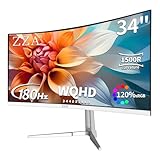
The ZZA 34-inch is the aesthetic pick, and there is nothing wrong with admitting that aesthetics matter when a monitor sits in the middle of a room, on camera, or in a workspace you look at for eight hours a day. It is a 34-inch curved 3440 x 1440 panel with a white chassis, 165 Hz and 180 Hz modes, and FreeSync for tear-free playback. It suits two kinds of buyer: the editor building a white desk setup who wants the display to match, and the creator who streams or records on camera and wants a screen that does not read as a black slab behind them. As a secondary edit station — a second timeline, a client review display, or a scopes-and-media-management screen next to a primary — it earns its place on price alone.
Key specs as listed
- Size and resolution: 34-inch ultrawide, 3440 x 1440
- Refresh rate: 165 Hz / 180 Hz
- Form: curved, white chassis
- Adaptive sync: FreeSync for tear-free playback
- Price tier: budget
FreeSync matters less for editing than for gaming, but it is not irrelevant. GPU-accelerated preview in Resolve, Premiere Pro and similar tools renders frames as fast as the GPU can manage, and without adaptive sync you can see micro-stutter or tearing in the program monitor during playback. Adaptive sync smooths that out. The 165 Hz and 180 Hz modes also keep cursor movement and timeline dragging fluid, which is the same benefit every high-refresh panel here offers.
The white finish is a genuine practical consideration beyond looks. A white bezel and back reflect more ambient light in a bright room and read as less of a black bar in a video call or a stream frame. If you record talking-head segments with the monitor in shot, a white display softens the composition compared with a glossy black one, and it does not show dust and fingerprints as dramatically — though it does show smudges from fingers more than a matte black finish does, so keep a microfiber cloth nearby.
Where it falls short
The ZZA listing does not state color coverage, panel technology, contrast ratio, brightness, or a calibration path. That is the core trade-off: you are buying a size, a resolution, a refresh rate and a finish, and you are trusting that the rest lands in the acceptable range for the price. In practice, a curved 34-inch 3440 x 1440 panel at a budget tier is typically VA-class with sRGB-ish coverage, which is fine for casual editing, social cuts, gaming footage and streaming overlays, and less fine for anything where a client is paying for color accuracy. Brand support is also the least established of the group: documentation, firmware updates and regional warranty handling for smaller brands can be slower and less predictable than for legacy names, so buy from a retailer with a clear return window and check the dead-pixel policy before you commit.
Pros
- White chassis stands out in a styled or on-camera workspace
- 3440 x 1440 editing canvas at a budget price tier
- 165 Hz / 180 Hz refresh for smooth timeline interaction
- FreeSync reduces tearing in GPU-accelerated preview
- Strong value as a second or third display in a multi-screen edit bay
- Curved form reduces edge viewing angle, same as the other 34-inch curved options
Cons
- No stated sRGB, AdobeRGB or DCI-P3 coverage figure
- Panel technology, brightness and contrast not specified in the listing
- No USB-C input and no stated calibration features
- Less established brand support and documentation than the legacy names here
- White finish shows finger smudges and requires more frequent cleaning
- Not the right pick if color accuracy is a contractual requirement
How it compares with the nearest alternative
This is a direct head-to-head with the Sceptre 34-inch curved, and the Sceptre wins on paper: 99% sRGB and two DisplayPort inputs are documented, while the ZZA leads with styling and FreeSync. If you need two computers attached, the Sceptre’s second DisplayPort is the deciding factor. If you need a white display on camera and the machine driving it is a single desktop, the ZZA is the one that fits the room. Against the SANSUI 34-inch 200 Hz, the ZZA gives up 20 Hz of refresh but costs less and offers the white option the SANSUI does not. For a primary color-critical edit display, neither beats the INNOCN 34-inch IPS; for a secondary screen or a streaming setup, the ZZA is the value pick.
4. INNOCN 40-Inch 5K 115 Hz Ultrawide USB-C – Best for Premium Single-Cable Workstation Editing

The INNOCN 40-inch is the premium pick and the only monitor here that changes the shape of your workspace rather than just the width of your timeline. A 40-inch 5K ultrawide at 115 Hz with HDR400 and USB-C input for laptop, Mac and mini PC is aimed at the editor who wants one enormous canvas, a single cable to a laptop, and pixel density high enough that text and scopes look sharp rather than slightly soft. It suits editors cutting 4K or 6K footage who need more than 3440 horizontal pixels for a program monitor, a full timeline, a media bin and scopes at once — and it suits Mac-based editors who want to plug in one Thunderbolt or USB-C cable and get video, data and charging in one go.
Key specs as listed
- Size and resolution: 40-inch ultrawide, 5K-class resolution
- Refresh rate: 115 Hz
- HDR: HDR400
- Connectivity: USB-C for laptop, Mac and mini PC
- Price tier: premium
The pixel density jump is the headline. A 34-inch 3440 x 1440 panel works out to roughly 110 PPI. A 40-inch 5K ultrawide lands near 139 PPI — about 26% more pixels per inch. That difference shows up in two places editors care about: small UI text in Resolve and Premiere Pro stays legible without leaning in, and fine detail in a 4K clip remains readable when you zoom to 100% in the program monitor. It also means you can run the display at a scaled resolution and still have crisp text, which is the trick that makes a 5K ultrawide pleasant rather than punishing.
That scaling decision is worth working through, because it determines how much timeline you actually get. At 100% scaling you have the full 5K width available as desktop pixels, which is enough for a 1280-pixel-wide program monitor and still leaves well over 3,000 pixels for the timeline — roughly 25 to 30 video tracks visible at once in a typical NLE layout. At 150% scaling the desktop behaves like roughly 3400 logical pixels wide, which is very close to what a 34-inch 3440 x 1440 gives you at 100% — but every character is sharper. Most editors who buy a 5K ultrawide end up at 125-150% scaling for exactly this reason: the working room matches a 34-inch, and the sharpness is the upgrade.
USB-C input is the second reason to buy. One cable carries display signal, USB data for peripherals and power delivery to a laptop. That eliminates the dock, the second power brick and the tangle behind the desk, and it means moving between a laptop and a desktop is a single plug. Check the power-delivery wattage your laptop requires — many 14- and 16-inch machines want 65 W or more — and confirm the display’s output against that before buying, because a panel that charges slowly is worse than a dock that charges properly.
Where it falls short
HDR400 is the entry rung of HDR certification. It means the panel can reach 400 nits peak in HDR mode and accepts an HDR signal; it does not mean you should grade HDR masters on it. For HDR delivery you want local dimming zones, higher peak brightness and wide DCI-P3 coverage, and that is a different class of display entirely. Treat HDR400 here as extra brightness headroom in a bright room and a nicer-looking preview, not as a reference pipeline.
Bandwidth and desk depth are the other two constraints. Driving 5K at 115 Hz requires a modern GPU and the right cable — DisplayPort 1.4 with DSC, HDMI 2.1, or a Thunderbolt/USB-C link with enough throughput. Older laptops that output HDMI 2.0 will fall back to a lower refresh rate or a lower resolution, and the panel will still work but will not feel premium. On the physical side, a 40-inch ultrawide is a big object: you want roughly 80-90 cm of eye-to-screen distance, which means a desk at least 75-80 cm deep, and you want the stand or a heavy-duty VESA arm to hold it stable. A 60 cm desk with a 40-inch panel is a neck-strain machine.
Pros
- Roughly 139 PPI — the sharpest text and finest detail in this roundup
- 5K-class width lets you run a large program monitor and a very long timeline simultaneously
- USB-C single-cable connection for laptop, Mac and mini PC workflows
- 115 Hz keeps interface interaction smooth despite the higher pixel count
- HDR400 adds useful brightness headroom in a lit room
- Genuine upgrade path: it will still feel current when you move to 4K or 6K delivery
Cons
- Premium price tier — the largest spend in this list
- HDR400 is not a grading-grade HDR pipeline
- Needs a modern GPU and the correct cable to hit full resolution at full refresh
- Demands a deep desk, roughly 75-80 cm minimum, plus a stable mount
- Scaling is effectively mandatory for comfortable UI text, which reduces the pixel advantage to a sharpness gain
- USB-C power delivery wattage must be verified against your specific laptop
How it compares with the nearest alternative
Against the Philips 34E1C5600HE, both are premium, but they solve different problems. The Philips is a 34-inch productivity-class UltraWide with a built-in Windows Hello webcam and a noise-canceling mic — it is built for the editor who is on camera and on calls as much as in the timeline. The INNOCN 40-inch is built for the editor who wants maximum canvas and sharpness and already owns a good webcam. If you record voiceovers and take client calls from the same desk, the Philips saves you peripheral clutter. If your priority is seeing more timeline and sharper footage, the INNOCN 40-inch is the better display and the Philips is the better workstation. Against the 34-inch 3440 x 1440 options, the 40-inch 5K is the only one here that meaningfully changes how much you can see at once.
5. SANSUI 34-Inch Curved UWQHD 200 Hz – Best for Editors Who Also Game

The SANSUI 34-inch curved is the hybrid pick: a 3440 x 1440 ultrawide at up to 200 Hz, the highest refresh rate in this roundup. It suits the editor whose machine does double duty — cutting footage during the day, playing at night — and who wants one panel to serve both without buying a second gaming monitor. It also suits editors who value the deepest blacks they can get at this price: a curved 34-inch at a mid-range tier is typically VA-class, and VA’s higher static contrast makes dark scenes in the timeline and in the program monitor look richer than an IPS panel of the same generation.
Key specs as listed
- Size and resolution: 34-inch ultrawide, 3440 x 1440 (UWQHD)
- Refresh rate: up to 200 Hz
- Form: curved ultrawide
- Price tier: mid-range
What does 200 Hz buy an editor over 165 Hz? Honestly, not much in color terms — nothing at all. Where it helps is perceived responsiveness: playhead dragging, clip trimming, zooming the timeline, and moving windows around a very wide desktop. The difference between 165 Hz and 200 Hz is subtle; the difference between 60 Hz and either of them is not. If you are choosing between this and a 60 Hz productivity panel, the refresh rate is a real quality-of-life upgrade. If you are choosing between this and a 165 Hz panel, do not let 35 Hz decide it — decide on color coverage, inputs and warranty instead.
The curved geometry is the same argument as the other curved 34-inch models here: at roughly 80 cm of panel width, a 1500R-class curve brings the outer thirds of the screen closer to your eyes and reduces the angle at which you view the far end of a long timeline. For an editor who spends the day dragging along a horizontal track, that is a physical comfort improvement, not a cosmetic one.
Where it falls short
The listing states resolution, size, refresh rate and curvature, but not panel technology, color coverage, brightness or calibration support. That is the central caution with this model: for gaming and general editing it will do the job, but if your work requires documented sRGB or DCI-P3 coverage, you cannot confirm it from the listing, and you should either find the manufacturer’s spec sheet or buy from a retailer with a generous return window. The same caveat applies to HDR: without stated certification, assume it is nominal. There is also no USB-C listed, so laptop docking is not part of the package.
Mid-range pricing means you are paying partly for the refresh rate. If you do not game, that money is better spent on the INNOCN 34-inch IPS for color stability, or saved entirely with the Sceptre. Buy the SANSUI for what it uniquely offers — the fastest panel here with the contrast advantage of a curved VA-class screen — not as a general-purpose editing display.
Pros
- 200 Hz — the highest refresh rate in this roundup
- 3440 x 1440 UW
Affiliate disclosure. As an Amazon Associate we earn from qualifying purchases at no extra cost to you. Prices accurate as of the date shown.Best Ultrawide Monitors for Video EditingCheck price on Amazon