Key takeaways
- Pen tips wear down: Frequent writing, textured screen films, and firm pressure can shorten tip life. Keep spare tips if the manufacturer offers them, and replace a tip that becomes rough or visibly damaged.
- Protect the display and stylus: A case helps prevent corner impacts in a packed bag. Store magnetic or rechargeable pens where they cannot be knocked loose, and avoid carrying a bare stylus beside keys or grit.
- Back up and export: Sync is convenient but is not the same as an independent archive. Periodically export important notes or PDFs to a second location, particularly before changing devices or accounts.
- Use screen films deliberately: A paper-texture film can improve friction but may wear pen tips faster and slightly reduce display clarity. Try the bare screen first if you are unsure.
- Check app and file compatibility: Before committing, confirm that your school, employer, or collaborators can open the formats you plan to share. PDF is widely usable, but editable notes may remain tied to a particular app.
Best Tablets for Note Taking at School, Work, and Home
The best tablets for note taking depend on where and how you write: the Apple iPad Air is the most versatile pick for students and mixed-use buyers, the Samsung Galaxy Tab S10+ suits people who want a large screen and an included pen, and the reMarkable Paper Pro is a focused choice for distraction-light handwriting and document markup.
For notes that need to be searchable, shared, or reorganized, prioritize handwriting-to-text conversion, reliable cloud sync, and folders or tags. For long handwritten sessions, pay closer attention to screen finish, pen feel, and battery life. Pen latency matters, but a consistent writing experience and good organization are usually more useful day to day than a small difference in milliseconds.
Our top picks


As an Amazon Associate we earn from qualifying purchases at no extra cost to you. Ratings are shown as listed on Amazon.
Quick comparison
| Tablet | Screen | Weight | Battery claim | Pen and note-taking strengths |
|---|---|---|---|---|
| Apple iPad Air 11-inch (M3, 2025) | 11 in, LCD | About 460 g | Up to 10 hours of web use over Wi-Fi | Apple Pencil Pro or Apple Pencil (USB-C); strong app selection and handwriting search in Apple Notes |
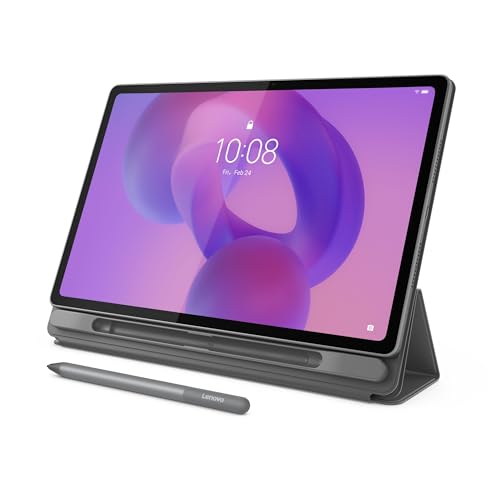
| Samsung Galaxy Tab S10+ (2024) | 12.4 in, AMOLED | About 571 g | Up to 16 hours of video playback | S Pen included; large canvas, Samsung Notes, handwriting conversion, and split-screen tools |
| Microsoft Surface Pro 11 (2024) | 13 in, OLED or LCD, depending on configuration | From about 895 g, tablet only | Up to 14 hours of local video playback, depending on configuration | Surface Slim Pen sold separately; Windows apps and desktop document workflows |
| reMarkable Paper Pro (2024) | 11.8 in, color E Ink | About 525 g | Up to two weeks, depending on use | Marker included; paper-like writing, notebooks, PDF markup, and low-distraction reading |
Figures are manufacturer-published specifications or claims; battery life varies with brightness, wireless use, apps, and workload. Weight excludes accessories, and Surface Pro configurations differ. Screen size is measured diagonally. The Surface Pro is a full Windows computer, so its keyboard and pen can make the complete setup heavier and more expensive than a tablet-focused alternative.
Choose by situation
| Your situation | Best fit | Why it fits | Trade-off to consider |
|---|---|---|---|
| Classes, study apps, and handwritten diagrams | iPad Air 11-inch | Portable, broad selection of note and PDF apps, and easy sharing | Apple Pencil is an additional purchase; screen is smaller than larger models |
| Long lecture notes or side-by-side documents | Galaxy Tab S10+ | Roomy AMOLED display and S Pen included in the standard package | Larger to carry; Android app workflows may differ from a school’s desktop setup |
| Meetings tied to Windows files and desktop software | Surface Pro 11 | Runs Windows applications and handles desktop-style file workflows | Pen and keyboard can raise the total cost and carry weight |
| Reading, drafting, and marking up documents with fewer distractions | reMarkable Paper Pro | E Ink screen is designed for writing and reading rather than general tablet entertainment | Limited app ecosystem; color and refresh behavior differ from LCD or OLED |
What makes a tablet good for handwriting?
Pen latency and writing feel
Low latency helps ink follow the stylus closely, especially when writing quickly or drawing diagrams. Recent iPads, Samsung Galaxy Tabs, and Surface devices are designed for responsive active pens, but the perceived feel also depends on the app, screen surface, and pen tip. If possible, try the exact model and stylus together: a smooth glass display can feel less like paper than a textured film, while some matte protectors add friction at the cost of extra wear or slightly softer-looking text.
The reMarkable Paper Pro takes a different approach. Its E Ink display is suited to deliberate writing and reading, not the fluid animations or fast video response of a conventional tablet. Choose it for the writing-focused workflow, not because E Ink is automatically better for every kind of note taking.
Handwriting tools and document organization
For class notes, look for lasso selection, page templates, audio recording if you need it, handwriting conversion, and search that can find handwritten words. Apple Notes, Samsung Notes, OneNote, and dedicated iPad note apps offer different combinations of these features. Check whether the functions you rely on work offline and whether your notes sync to the devices you already use.
Organization is easier when you settle on a simple structure before a busy term or project: one folder per course or client, notebooks for separate topics, and consistent tags for items such as “exam,” “follow-up,” or “receipt.” Export a sample notebook as PDF and confirm that page order, handwriting, and annotations survive. This is especially important if you must submit work through a learning platform or send meeting notes to colleagues who do not use the same app.
Size, battery, and the cost of the complete setup
An 11-inch tablet is easier to hold in one hand and tends to fit smaller bags. A 12- to 13-inch screen gives more room for a full page, diagrams, and split-screen reading, but is less convenient on a crowded desk or during a commute. If you usually write on a desk, the larger canvas may be worth the added bulk; if you take notes while standing or walking between classes, portability matters more.
Compare battery claims cautiously: manufacturers use different tests, and video playback figures do not predict a full day of bright-screen note taking exactly. A practical routine is to charge overnight, keep a cable or compact charger in your bag for long days, and reduce brightness when working indoors. Also check that cloud sync does not depend on an account or subscription you are unwilling to maintain.
Budget for the whole writing setup, not just the tablet. The Galaxy Tab S10+ includes an S Pen, while Apple Pencil and Surface Slim Pen are sold separately. A keyboard case is useful for typing longer documents but adds weight and cost; a basic stand or folio may be enough if handwriting is the priority. Accessory prices vary, so compare current bundles and general market ranges before choosing.
Ownership details that affect long-term value
- Pen tips wear down: Frequent writing, textured screen films, and firm pressure can shorten tip life. Keep spare tips if the manufacturer offers them, and replace a tip that becomes rough or visibly damaged.
- Protect the display and stylus: A case helps prevent corner impacts in a packed bag. Store magnetic or rechargeable pens where they cannot be knocked loose, and avoid carrying a bare stylus beside keys or grit.
- Back up and export: Sync is convenient but is not the same as an independent archive. Periodically export important notes or PDFs to a second location, particularly before changing devices or accounts.
- Use screen films deliberately: A paper-texture film can improve friction but may wear pen tips faster and slightly reduce display clarity. Try the bare screen first if you are unsure.
- Check app and file compatibility: Before committing, confirm that your school, employer, or collaborators can open the formats you plan to share. PDF is widely usable, but editable notes may remain tied to a particular app.
Bottom line
For most people who want one device for handwritten notes, reading, and everyday apps, the iPad Air is the most balanced choice—provided you include the Pencil in your budget. Choose the Galaxy Tab S10+ if a larger display and an included stylus make the package more appealing. Pick the Surface Pro 11 when Windows software and desktop file handling are central to your work, and the reMarkable Paper Pro when writing and document reading matter more than a broad app library.
Before buying, test the writing feel if you can, confirm how notes will sync and export, and compare the complete setup’s weight and cost. Those checks are more likely to prevent regret than choosing on screen size or a headline battery figure alone.